| .devcontainer | ||
| .github/workflows | ||
| app | ||
| bin | ||
| images | ||
| tests | ||
| .eslintignore | ||
| .eslintrc.yaml | ||
| .gitignore | ||
| .prettierrc | ||
| .tool-versions | ||
| BUILD.md | ||
| ChangeLog-Old.md | ||
| ChangeLog.md | ||
| config.json.sample | ||
| DEPRECATED.md | ||
| Dockerfile | ||
| EventFlow.md | ||
| FLOWS.md | ||
| index.js | ||
| jsconfig.json | ||
| LICENSE | ||
| package.json | ||
| README.md | ||
| SERVER_API.md | ||

WebSSH2 - Web SSH Client

WebSSH2 is an HTML5 web-based terminal emulator and SSH client. It uses SSH2 as a client on a host to proxy a Websocket / Socket.io connection to an SSH2 server.

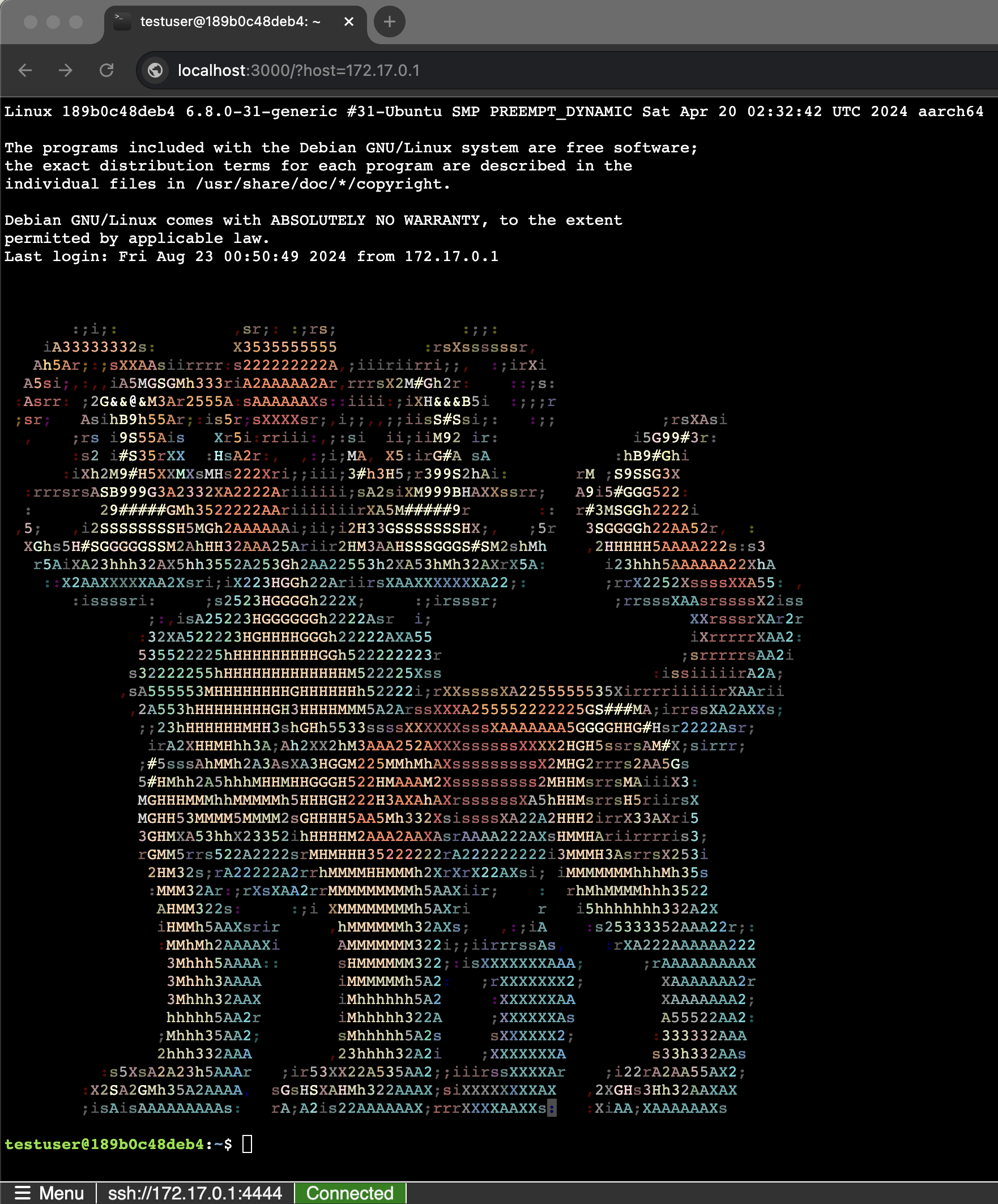
Table of Contents
- Requirements
- Installation
- Docker Setup
- Usage
- Configuration
- Features
- Routes
- Deprecation Notice
- Client-Side Module
- Tips
- Support
Requirements
- Node.js 6.9.1
Installation
-
Clone the repository:
git clone https://github.com/billchurch/webssh2.git cd webssh2 -
Install dependencies:
npm install --productionFor development purposes, use
npm installinstead. -
Configure the application by editing
config.jsonif needed. -
Start the server:
npm start
Docker Setup
- Build and run the Docker container (with debug messages):
docker build -t webssh2 .
docker run --name webssh2 --rm -it -p 2222:2222 -e "DEBUG=webssh2*,-webssh2:ssh2" webssh2
Important Note About Configuration Files
As of recent versions, the configuration file location has moved from /usr/src to /usr/src/app in the Docker container. This change improves organization but requires attention when mounting custom configuration files.
To use a custom configuration file with the Docker container, mount your config.json to the new location using:
docker run -it --rm --name webssh2 \
  -p 2222:2222 \
  -e DEBUG="webssh2*" \
  -v "$(pwd)/config.json:/usr/src/app/config.json" \
  billchurch/webssh2:bigip-server
Note:
- If you previously mounted your configuration file to
/usr/src/config.json, it will not be detected. The container will silently fall back to default configuration. - The new location at
/usr/src/app/config.jsonis the only valid path for custom configuration files. - The default configuration provides basic functionality, so missing custom configurations may not be immediately apparent.
Usage
Access the web client by navigating to:
http://localhost:2222/ssh
You'll be prompted for host details and SSH credentials.
Alternatively you may use the /ssh/host/<host> route:
http://localhost:2222/ssh/host/127.0.0.1
You'll be prompted for SSH credentials via HTTP Basic Authentication. P
Configuration
GET Parameters
port=- integer - SSH server port (default:22)header=- string - Optional header textheaderBackground=- string - Optional background color (default:"green")sshterm=- string - Terminal type for pty (default: xterm-color)
Config File Options
Edit config.json to customize the following options:
listen.ip- string - IP address to listen on (default:"127.0.0.1")listen.port- integer - Port to listen on (default:2222)http.origins- array - CORS origins for socket.io (default:["*:*"])user.name- string - Default SSH username (default:null)user.password- string - Default SSH password (default:null)ssh.host- string - Default SSH host (default:null)user.privatekey- string - Default SSH private key (default:null)ssh.port- integer - Default SSH port (default:22)ssh.term- string - Terminal emulation (default:"xterm-color")ssh.readyTimeout- integer - SSH handshake timeout in ms (default:20000)ssh.keepaliveInterval- integer - SSH keepalive interval in ms (default:120000)ssh.keepaliveCountMax- integer - Max SSH keepalive packets (default:10)ssh.disableInteractiveAuth- boolean - When set totrue, prevents interactive authentication through the web interface. Users must use Basic Authentication via the/ssh/host/<host>route. (default:false)ssh.algorithms.cipher- array - Supported cipher algorithms (default:["aes128-ctr", "aes192-ctr", "aes256-ctr", "aes128-gcm", "aes128-gcm@openssh.com", "aes256-gcm", "aes256-gcm@openssh.com", "aes256-cbc"])ssh.algorithms.compress- array - Supported compression methods (default:["none", "zlib@openssh.com", "zlib"])ssh.algorithms.hmac- array - Supported HMAC algorithms (default:["hmac-sha2-256", "hmac-sha2-512", "hmac-sha1"])ssh.algorithms.kex- array - Supported key exchange methods (default:["ecdh-sha2-nistp256", "ecdh-sha2-nistp384", "ecdh-sha2-nistp521", "diffie-hellman-group-exchange-sha256", "diffie-hellman-group14-sha1"])ssh.algorithms.serverHostKey- array - Supported host key types (default:["ecdsa-sha2-nistp256", "ecdsa-sha2-nistp384", "ecdsa-sha2-nistp521", "ssh-rsa"])header.text- string - Header text (default:null)header.background- string - Header background color (default:"green")session.name- string - Session cookie name (default:"webssh2.sid")session.secret- string - Session secret key (default:crypto.randomBytes(32).toString("hex"))options.challengeButton- boolean - Enable challenge button (default:true)options.autoLog- boolean - Enable auto-logging (default:false)options.allowReauth- boolean - Allow reauthentication (default:true)options.allowReconnect- boolean - Allow reconnection (default:true)options.allowReplay- boolean - Allow credential replay (default:true)
For detailed SSH algorithm configurations, refer to the full config file.
Features
Keyboard Interactive Authentication
Keyboard Interactive authentication provides a flexible way to handle various authentication scenarios, including multi-factor authentication.
How it works
-
When the SSH server requests Keyboard Interactive authentication, WebSSH2 can handle it in two ways: a) Automatically (default behavior) b) By prompting the user through the web interface
-
In automatic mode:
- If all prompts contain the word "password" (case-insensitive), WebSSH2 will automatically respond using the password provided during the initial connection attempt.
- If any prompt doesn't contain "password", all prompts will be forwarded to the web client for user input.
-
When prompts are sent to the web client:
- A dialog box appears in the user's browser, displaying all prompts from the SSH server.
- The user can input responses for each prompt.
- Responses are sent back to the SSH server to complete the authentication process.
Configuration Options
You can customize the Keyboard Interactive authentication behavior using the following option in your config.json:
{
  "ssh": {
    "alwaysSendKeyboardInteractivePrompts": false
  }
}
alwaysSendKeyboardInteractivePrompts(boolean, default: false):- When set to
true, all Keyboard Interactive prompts will always be sent to the web client, regardless of their content. - When set to
false(default), WebSSH2 will attempt to automatically handle password prompts and only send non-password prompts to the web client.
- When set to
Use Cases
-
Simple Password Authentication: With default settings, if the SSH server uses Keyboard Interactive for password authentication, WebSSH2 will automatically handle it without additional user interaction.
-
Multi-Factor Authentication: For SSH servers requiring additional factors (e.g., OTP), WebSSH2 will present prompts to the user through the web interface.
-
Always Prompt User: By setting
alwaysSendKeyboardInteractivePromptstotrue, you can ensure that users always see and respond to all authentication prompts, which can be useful for security-sensitive environments or for debugging purposes.
Security Considerations
- The automatic password handling feature is designed for convenience but may not be suitable for high-security environments. Consider setting
alwaysSendKeyboardInteractivePromptstotrueif you want users to explicitly enter their credentials for each session. - Ensure that your WebSSH2 installation uses HTTPS to protect the communication between the web browser and the WebSSH2 server.
For more information on SSH keyboard-interactive authentication, refer to RFC 4256.
SSH Private Key Authentication
WebSSH2 supports SSH private key authentication when using the /ssh/host/ endpoint with a private key configured in the server settings.
Configuration
Private key authentication can only be configured through the config.json file:
{
  "user": {
    "name": "myuser",
    "privatekey": "-----BEGIN RSA PRIVATE KEY-----\nYour-Private-Key-Here\n-----END RSA PRIVATE KEY-----",
    "password": "optional-fallback-password"
  }
}
Key Requirements
- Only
ssh-rsatype keys are supported - The private key must be in PEM format
- The key in
config.jsonmust be on a single line with\nas line separators - Must include the appropriate header and footer:
-----BEGIN RSA PRIVATE KEY-----\n[... key content ...]\n-----END RSA PRIVATE KEY-----
Generating a Private Key
To generate a new SSH private key, you can use the following command:
ssh-keygen -m PEM -t rsa -b 4096 -f ~/.ssh/id_rsa
Converting Your Private Key
To convert your existing SSH private key into the correct format for config.json, you can use this bash command:
echo '"'$(cat ~/.ssh/id_rsa | tr '\n' '~' | sed 's/~/\\n/g')'"'
This command:
- Reads your private key file
- Converts newlines to temporary characters
- Replaces those characters with
\n - Wraps the result in quotes
- Outputs the key in a format ready to paste into your
config.json
Authentication Process
- When connecting through the
/ssh/host/endpoint, WebSSH2 will first attempt to authenticate using the private key specified inconfig.json - If key authentication fails and
user.passwordis configured, the system will automatically attempt password authentication - If both authentication methods fail, you'll receive an authentication error
Endpoint Support
/ssh/host/:host- Supports private key authentication configured viaconfig.json/ssh- Does NOT support private key authentication
Security Considerations
- Store private keys securely in your server configuration
- Use appropriate file permissions for your
config.jsonfile - Consider using encrypted private keys for additional security
- Always use HTTPS when accessing the WebSSH2 service
Example Usage
-
Convert and configure your private key:
# First, convert your key echo '"'$(cat ~/.ssh/id_rsa | tr '\n' '~' | sed 's/~/\\n/g')'"' # Copy the output and paste it into config.json -
Configure
config.json:{ "user": { "name": "myuser", "privatekey": "-----BEGIN RSA PRIVATE KEY-----\nMIIEpA...[rest of key]...Yh5Q==\n-----END RSA PRIVATE KEY-----", "password": "fallback-password" } } -
Access the service via the
/ssh/host/endpoint:https://your-server:2222/ssh/host/target-server
Troubleshooting
If key authentication fails, check:
- Key type is
ssh-rsa - Key format in
config.jsonis properly escaped with\nline separators - Key permissions on the target SSH server
- Server's
authorized_keysfile configuration - SSH server logs for specific authentication failure reasons
For additional support or troubleshooting, please open an issue on the GitHub repository.
Routes
WebSSH2 provides two main routes:
1. /ssh
- URL:
http(s)://your-webssh2-server/ssh - Features:
-
Interactive login form
-
Terminal configuration options
-
2. /ssh/host/:host
- URL:
http(s)://your-webssh2-server/ssh/host/:host - Authentication: HTTP Basic Auth
- Features:
- Quick connections to specific hosts
- Optional
portparameter (e.g.,?port=2222)
Deprecation Notice
Several configuration options and GET parameters have been deprecated. For a list of removed options and required actions, please refer to DEPRECATED.md.
Client-Side Module
WebSSH2 uses a companion module called webssh2_client which provides the browser-side terminal interface and WebSocket communication layer.
About webssh2_client
- Repository: https://github.com/billchurch/webssh2_client
- Purpose: Provides the browser-based terminal emulator and WebSocket client
- Integration: Automatically included as a dependency in package.json
- Version: The compatible version is managed through the package.json dependency
Features
The client module provides:
- Terminal emulation using xterm.js
- WebSocket communication with the WebSSH2 server
- User interface for SSH connections
- Terminal configuration and customization
- Session management
- File transfer capabilities
Client-Server Communication
The server integrates with the client module by:
- Serving the client's static files from
/client/public - Injecting server configuration into the client via
window.webssh2Config - Managing WebSocket connections for terminal I/O
- Handling authentication and session management
Customization
More to follow...
Tips
- For security, use HTTPS when transmitting credentials via HTTP Basic Auth.
- Terminal settings for
/ssh/host/:hostcan be customized after login viaMenu | Settingsand persist across sessions. - You can enable debug from the console by passing the
DEBUGenvironment variable to your start script:DEBUG=webssh*,-webssh2:ssh2 npm run start. Thewebssh2:ssh2namespace is very chatty and shows all of the SSH protocol information, the-webssh2:ssh2excludes that namespace from the line above, otherwiseDEBUG=webssh*will capture all of the WebSSH2 specific bits. You may also debug Socket.IO and Express related events withengine,socketandexpressnamespaces, or go for broke and debug everything withDEBUG=*.
For more detailed information on configuration and usage, please refer to the full documentation or open an issue on GitHub.
Support
If you like what I do, and want to support me you can buy me a coffee!
